Lesson 2 · 9 min
Focus: How It Works and How to Control It
What tap-to-focus really does, how to lock it, why a moving subject goes blurry, and when Portrait mode helps.
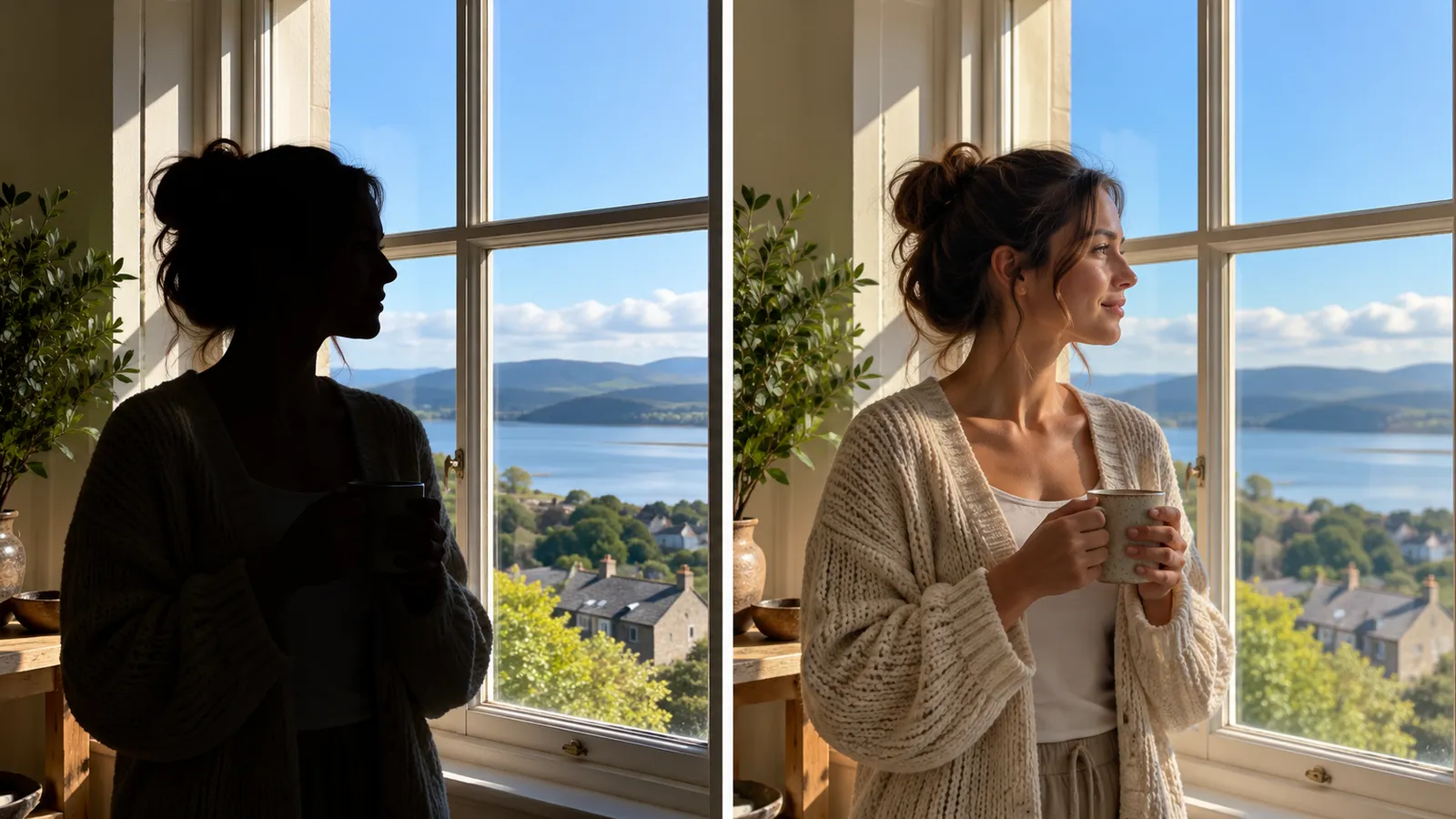
In this lesson: how the camera decides what is sharp, and how to take that decision back. Why it matters on an HNC shoot: the one thing a client will always notice is whether the face is sharp. A well-lit, nicely framed photo with a soft face is a failed photo.
What happens when you tap the screen
When you tap on your subject, you tell the camera, "this is the part that matters". On most phones that tap does two things:
- It focuses on the spot you tapped, setting the sharpest distance for the picture.
- It measures the brightness at that spot and adjusts the exposure to suit it.
That second part surprises people. Tap a bright window and the whole picture gets darker, so your client's face goes dim. Tap the client's face and the face is exposed correctly, even if the window behind them washes out. Always tap on the eyes or the face, not on the background and not on the clothes.
Think of focus as a flat sheet standing at a certain distance from you, the focus plane. Whatever sits on that plane is sharp. Things nearer or farther fade gradually into softness. A phone has a lot of "wiggle room" there, so most of your picture looks sharp, but it is the face that must sit on the plane.
Focus lock: tap and hold
A quick tap focuses once, and the camera keeps adjusting as things move. If you tap and hold until you see a lock message (often "AE/AF LOCK" or a padlock or similar icon, which varies by phone), the camera freezes the focus and the brightness on that spot.
Use focus lock when:
- your client is standing still and you want to change your framing without the camera refocusing on the background;
- there is a busy background that keeps stealing the focus, such as a crowd, a fence or tree branches;
- the light is changing (clouds, a flickering sign) and you want a steady brightness while you take several frames.
Focus lock holds a distance, not a person. It does not follow your client. That is the key to the next problem.
Why the subject goes blurry when you move
If the focus plane is set at 5 feet and your client takes two steps toward you, they are now at 3 feet. They have left the plane, so they are blurry. The same happens if you step forward or back yourself, or if your client sways, walks or dances toward the camera.
The fix is a habit: after anything moves, tap the face again. If a locked focus gives you a surprise, tap once to release it and refocus. For a moving subject, do not lock. Let the camera keep tracking, tap again when they stop, and take a burst of frames.
Portrait mode: what it does and when to use it
Portrait mode uses depth information (from a second lens or the phone's software) to keep your subject sharp and blur the background on purpose, so the subject stands out the way it does in a camera photo with a wide lens opening.
Use it for: a single person or a couple, a head-and-shoulders portrait, and any shot where the background is distracting.
Be careful with it when: the subject is moving a lot, there is a group at different distances, or the light is very low. Portrait mode can be slow, and it sometimes cuts oddly around hair, glasses, hands and fingers. Always zoom in on the edge of the hair and the shoulders after the first frame, and if the edge looks fake, turn Portrait mode off and take a normal photo.
For the effect to look real, stand about 3 to 8 feet from your subject and make sure the background is well behind them, at least 6 feet if you can.
On a camera, you get the same look with a wide lens opening (a small f-number such as f/1.8 to f/2.8), a subject well away from the background, and focus on the eye closest to the camera.
Common mistakes and how to avoid them
- Tapping the background by accident. Tap the eyes, then check that the face looks bright and clear.
- Not refocusing after moving. Any step, by you or the client, means tapping again.
- Leaving the lock on. A forgotten lock gives you a whole set of soft frames. Tap the screen again to release it.
- Using Portrait mode for a group. People at different distances will not all be sharp. Use the normal camera.
- A dirty lens. A fingerprint makes everything soft and hazy. Wipe it with a clean cloth before every booking.
- Judging sharpness on the small screen. Zoom in on the eyes before you trust a frame.
Key takeaway
Tap the eyes, lock only when the client is still, and tap again after anything moves.
Want to save your progress? Sign up as a photographer.